Oryon Inspection · Mobile + Web
A property inspection app for move-in and move-out.
Record the condition of every room, keep photos with the right item, and turn your observations into a detailed report. Bring the inspection back to your team for review and signatures.
For landlords, property managers, and inspection teams.
- iOS & Android
- Detailed PDF reports
- Web dashboard
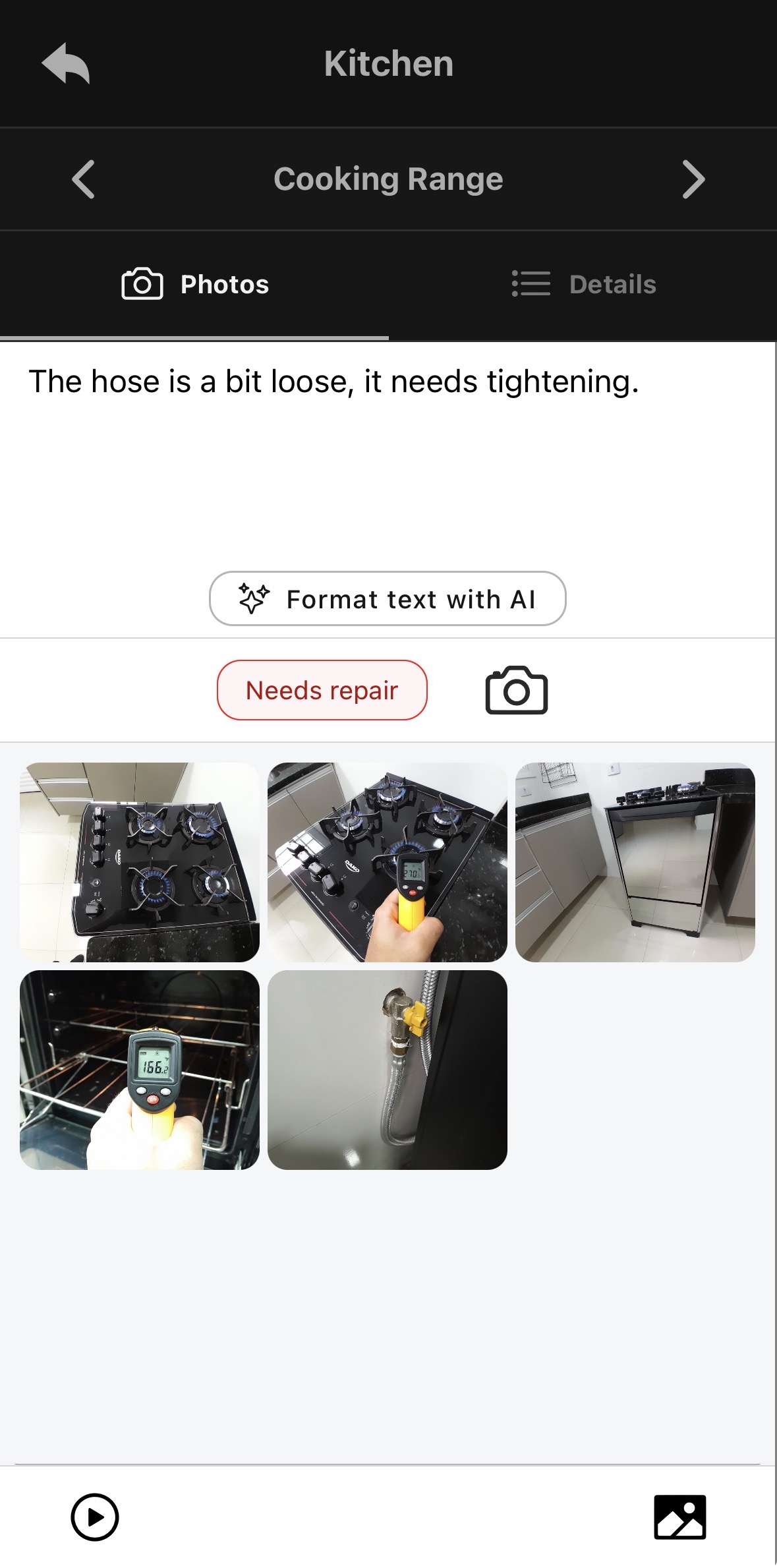
One item. Its photos, observation, and repair flag.
Both ends of the tenancy
Start with the condition.
Return to the record.
Establish the starting condition
Document rooms, fixtures, and existing issues before the tenancy gets underway. Give each observation a location and supporting evidence.
Record the final condition
Inspect the property at the end of the tenancy and document the condition left behind. Keep the starting record available when reviewing changes.
Keep the history useful
Use periodic inspections to record current condition, and a dispute addendum when additional observations need to be documented.
The screenshots below demonstrate a move-in inspection. Oryon supports move-in, move-out, and periodic inspections.
01 · Inspect on mobile
The observation and the evidence belong together.
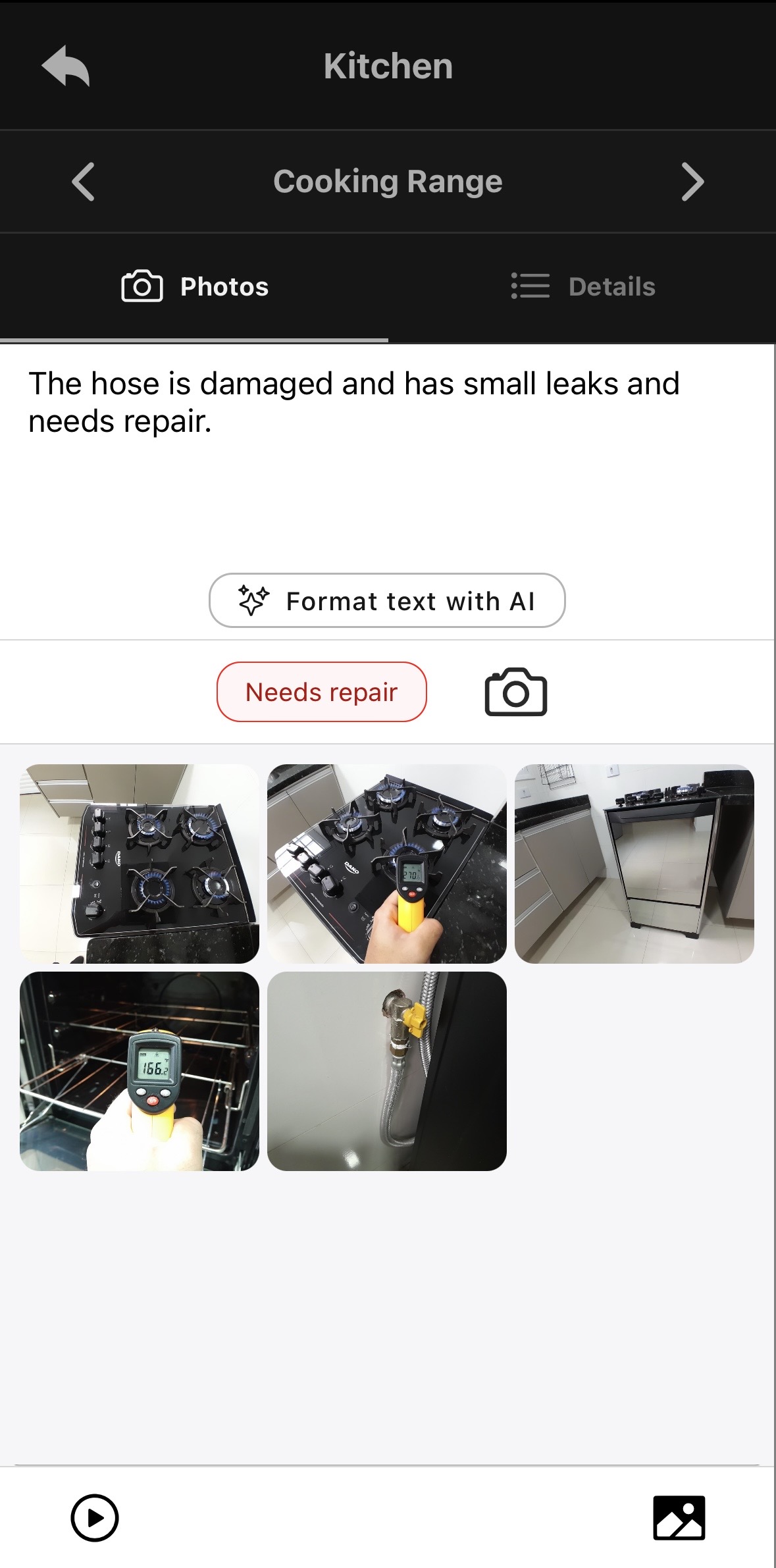
Open a room and select an item. In this example, Kitchen → Cooking Range brings together the photos and an observation about the hose, with a Needs repair flag.
Capture photos and videos, write an observation, and identify items needing attention. The screen also offers Format text with AI for the written note.
Swipe to the item's details to record its condition and characteristics. Here, that includes type, fuel, finish, and recorded test values.
Both screens describe the same item. The condition rating and repair flag provide different information: read the specific observation alongside them.
Product demonstration. The example illustrates documentation, not a procedure for testing or repairing gas equipment.
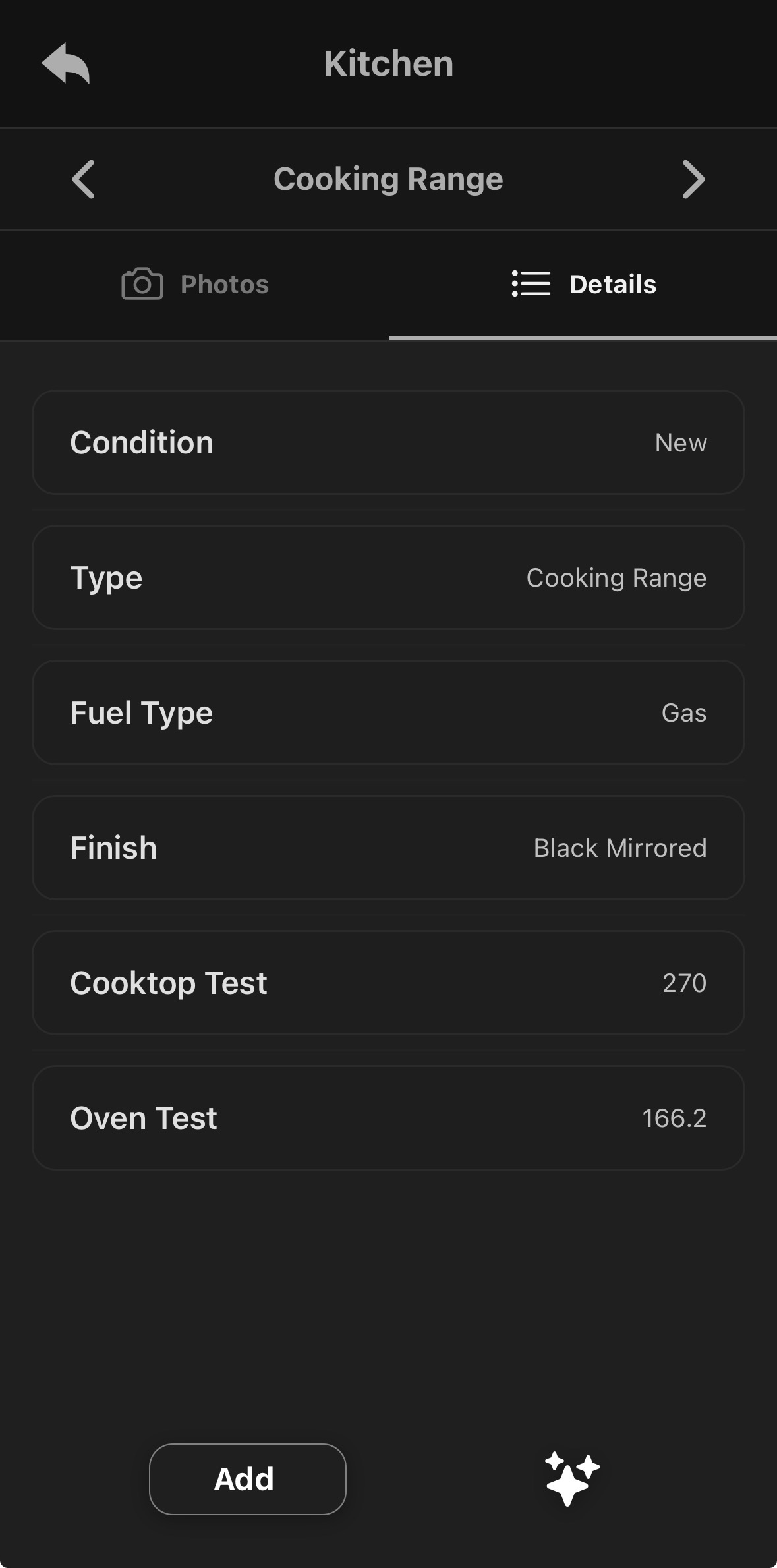
Swipe between Photos and Details within the item.
AI inside the inspection
A clearer note.
A head start on item details.
Use two different tools as you document an item: format an observation you have written, or analyze selected photos to populate its details.
Turn a rough note into readable wording.
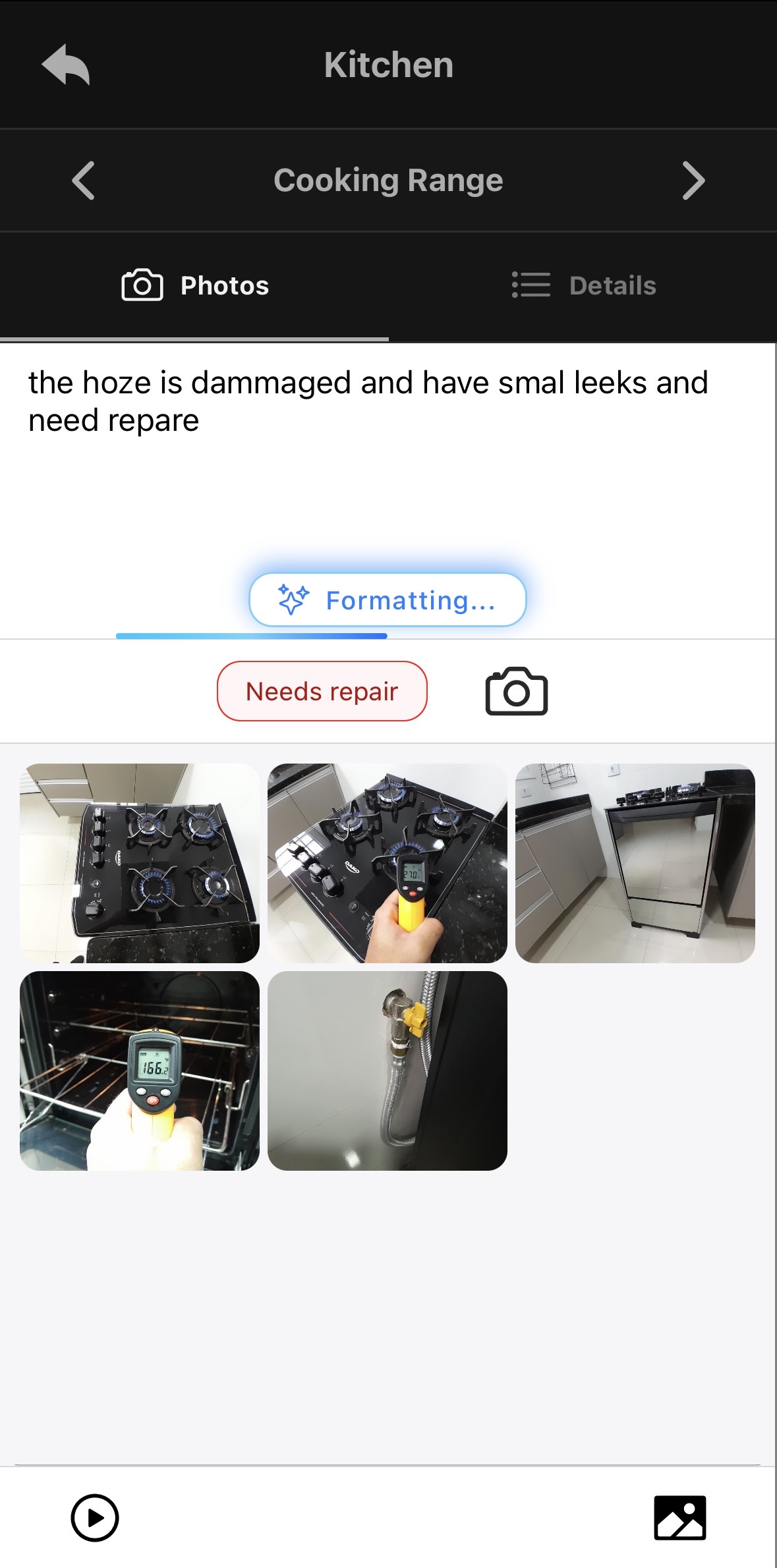
Write the observation in Photos, then select Format text with AI. In this example, the app corrects spelling, grammar, capitalization, and punctuation in the existing note.
Original
the hoze is dammaged and have smal leeks and need repare
Formatted
The hose is damaged and has small leaks and needs repair.
The reference to leaks was already in the inspector’s text. This example demonstrates wording correction, not damage detection from photos. Read the result and check that it still reflects your observation.
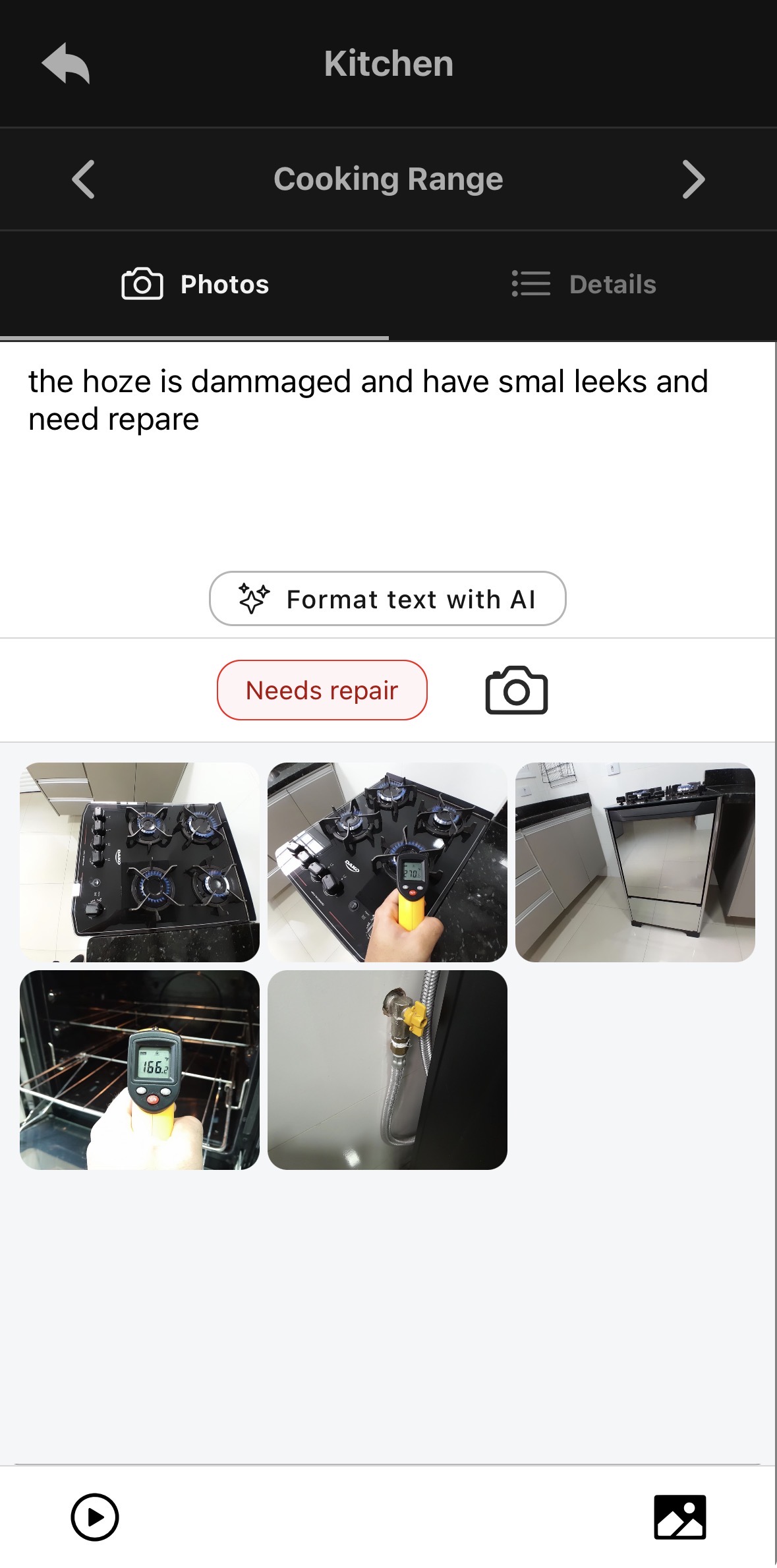
See the text-formatting progress screen
Start with photos. Review the populated fields.
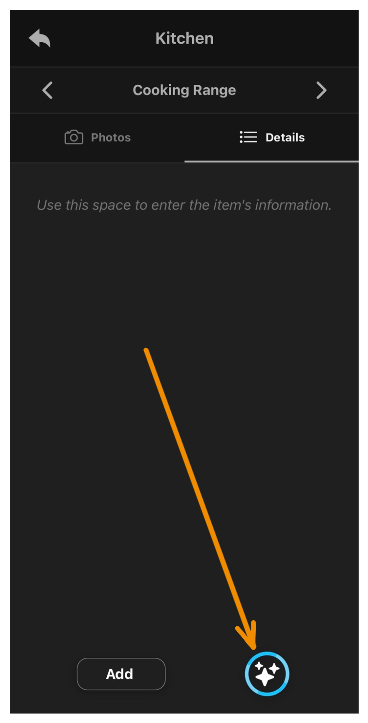
In Details, use the sparkle icon and select 2 to 6 photos of the item. Choose Generate with AI to analyze them and automatically fill item details.
The example shows fields returned for a cooking range, including condition, type, fuel, finish, and test values. When the analysis identifies a possible visible defect, it can also automatically populate the item’s observation field.
Check the generated characteristics and any observations against the item before completing the record. Photo analysis can miss or misinterpret details; a generated condition rating does not establish that equipment is safe.
The screenshots demonstrate selection and generated details. Automatic defect observations are a supported behavior described by Oryon; that output is not shown in this example. These are separate demonstrations from the earlier report example.
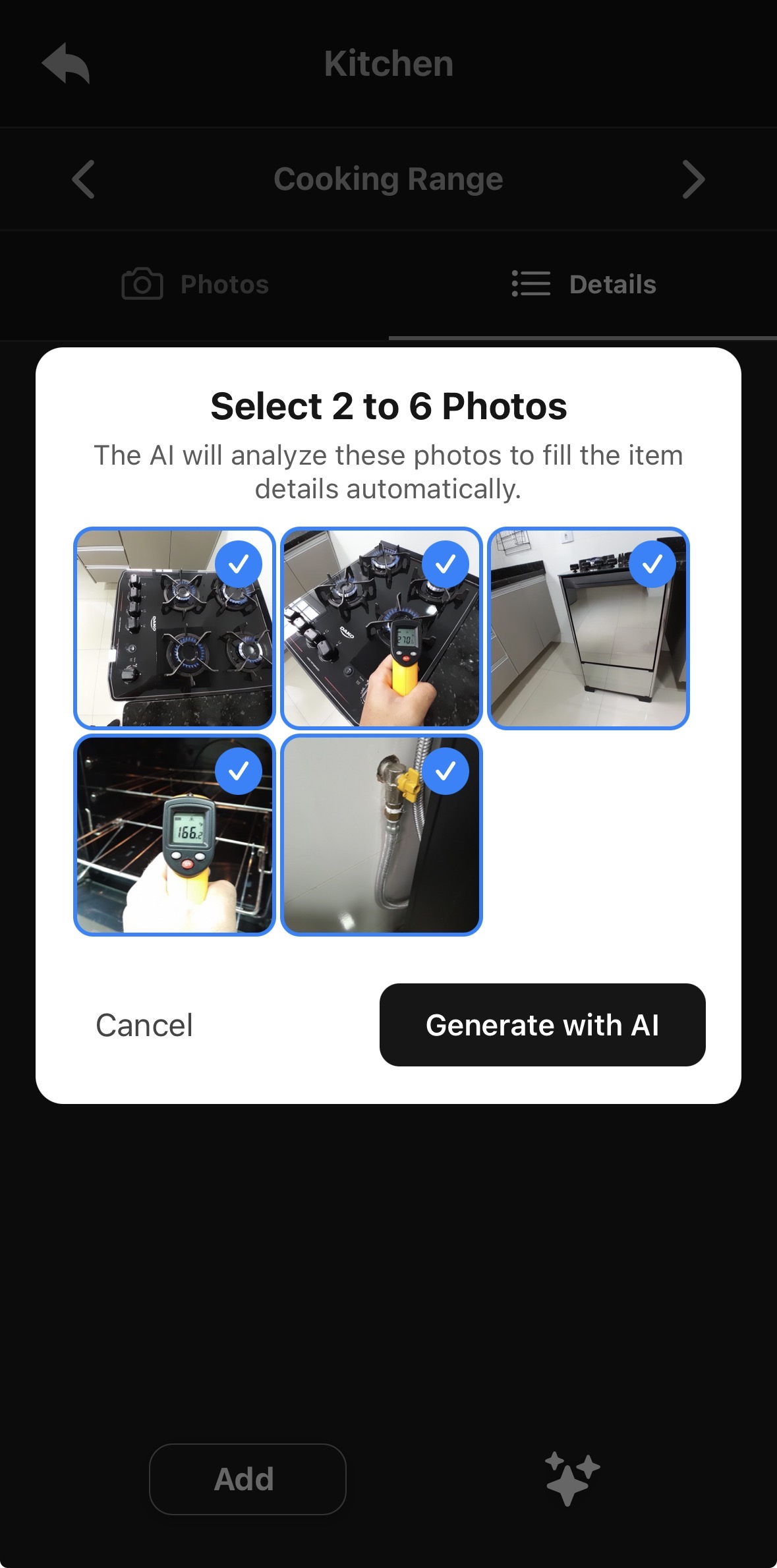
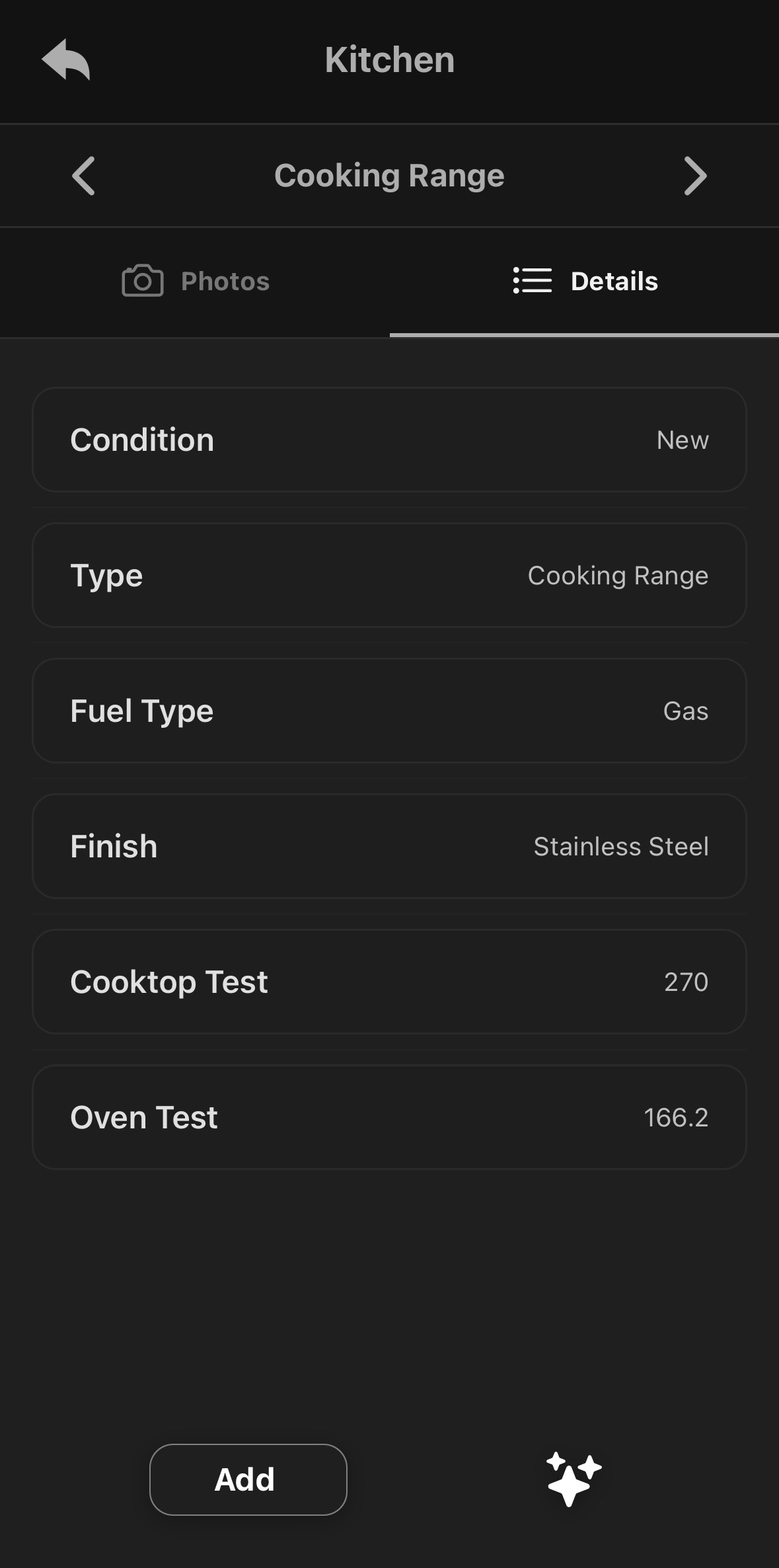
Where to find the AI action in Details
02 · Turn the walkthrough into a report
See exactly where
those details go.
The same observation, characteristics, and photos appear together in the PDF. Follow the cooking-range entry from the app to the document your inspection parties review.
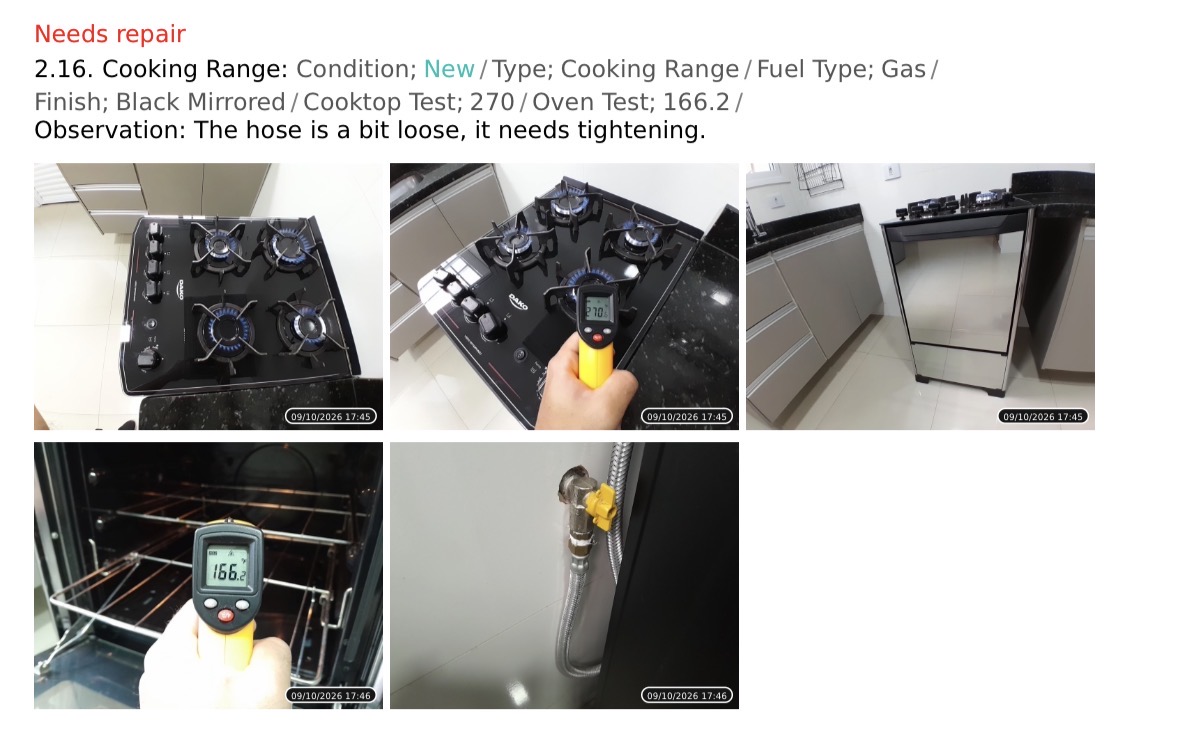
Each item has its own presentation in the report. Readers can locate the finding and review its evidence without matching a separate photo album to a list of notes.
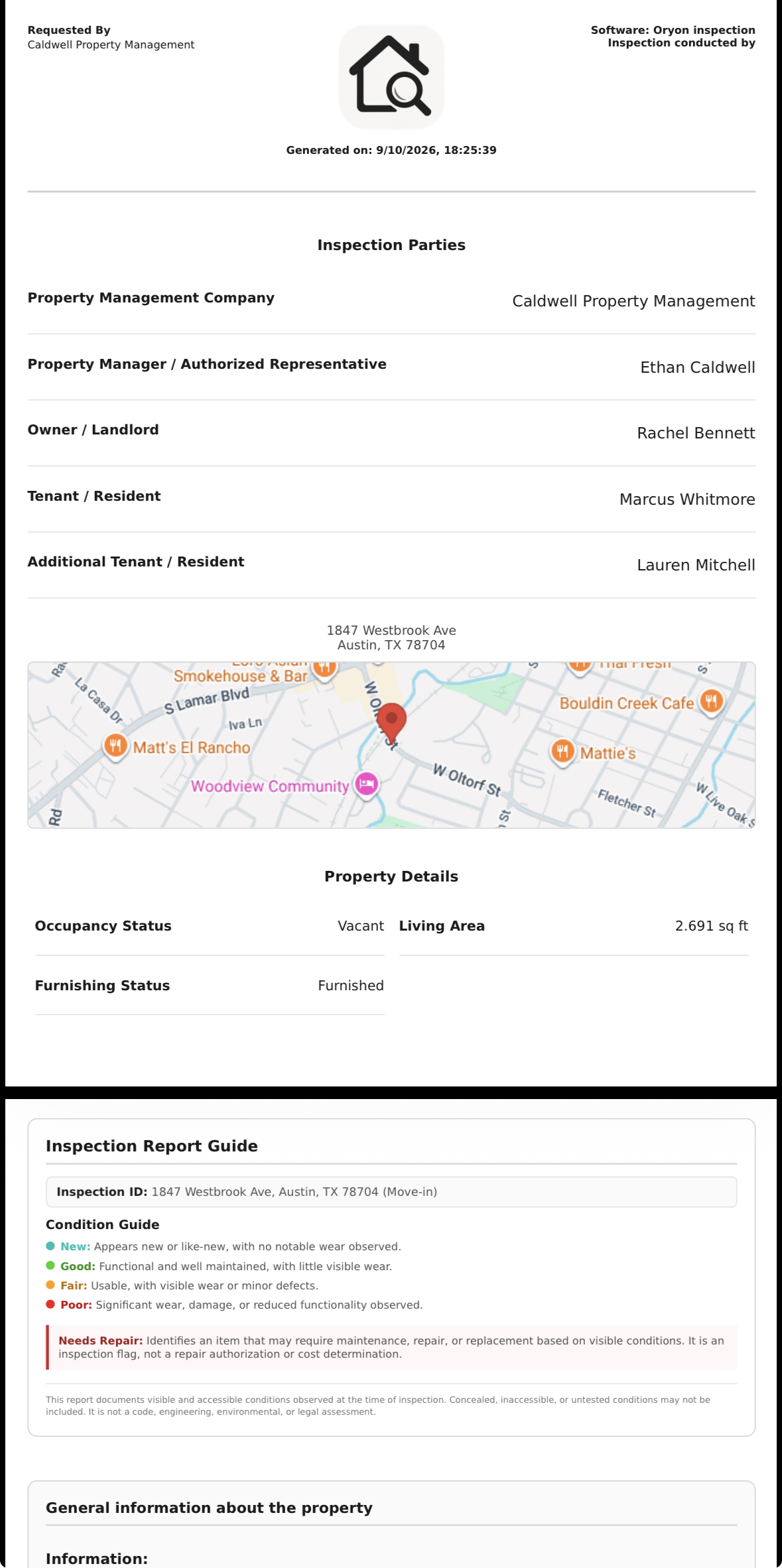
The report also identifies the property and inspection parties, with property details and a guide to the condition ratings.
Screenshots use demonstration records. Select an image to view it at full size in a new tab.
03 · Coordinate from the web
A place for the work
before and after the visit.
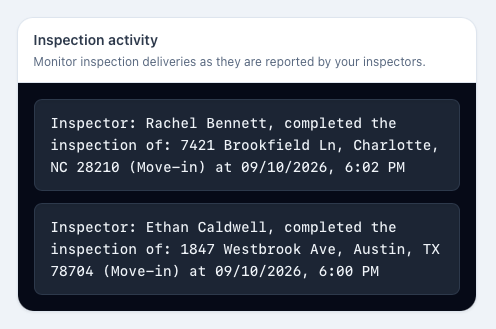
Schedule inspections and assign an inspector from the dashboard. Follow the calendar, then check the inspection completions reported by your team.
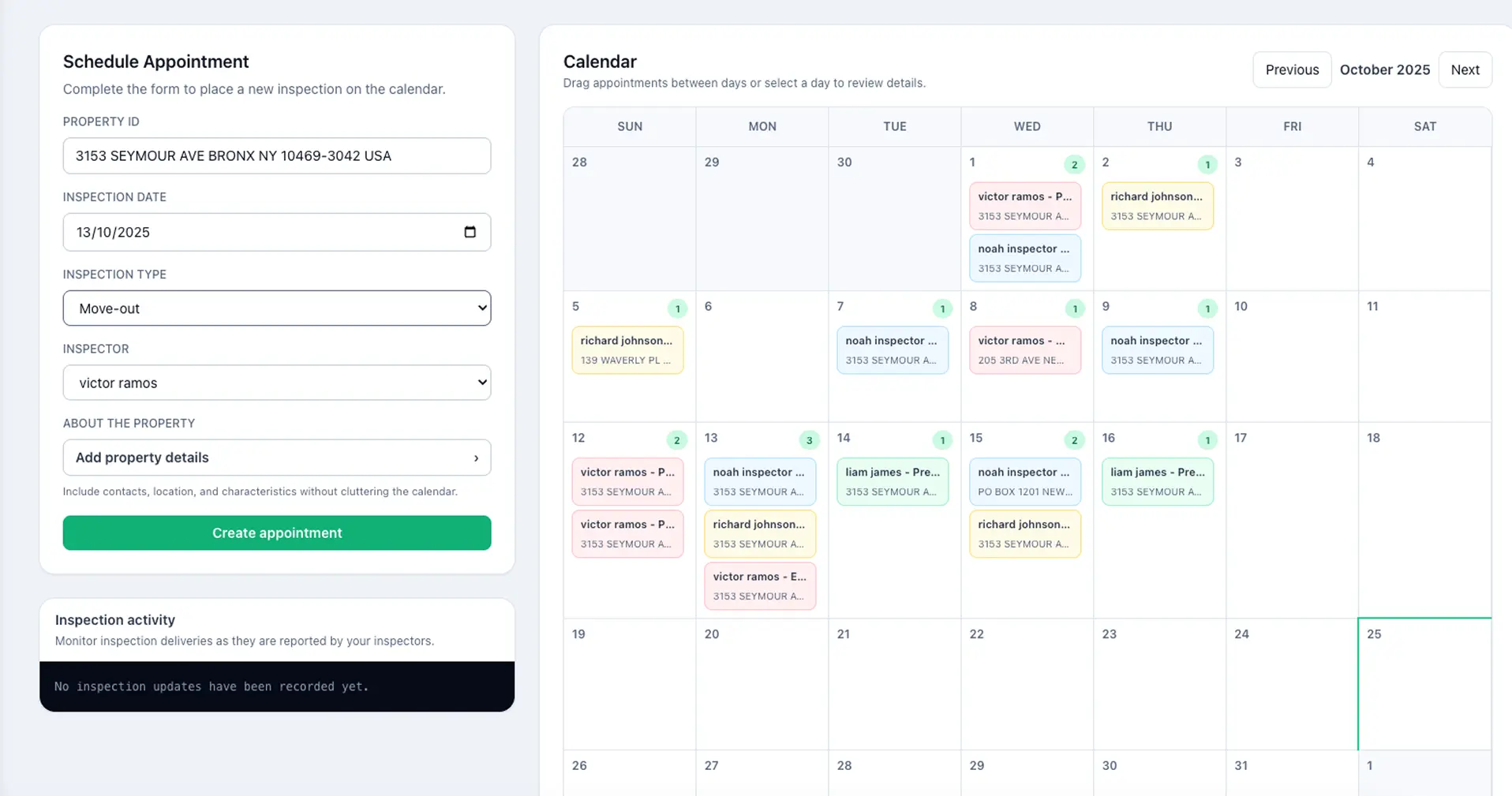
Know which inspections have been completed.
The Inspection activity panel records reported completions with the inspector, property, inspection type, and time. It gives the administrator a concise view of inspection deliveries.
The calendar and activity panel are separate dashboard examples. Activity entries describe reported completions, rather than every change made during an inspection.
04 · Review and collect signatures
From an uploaded inspection
to a signed report.
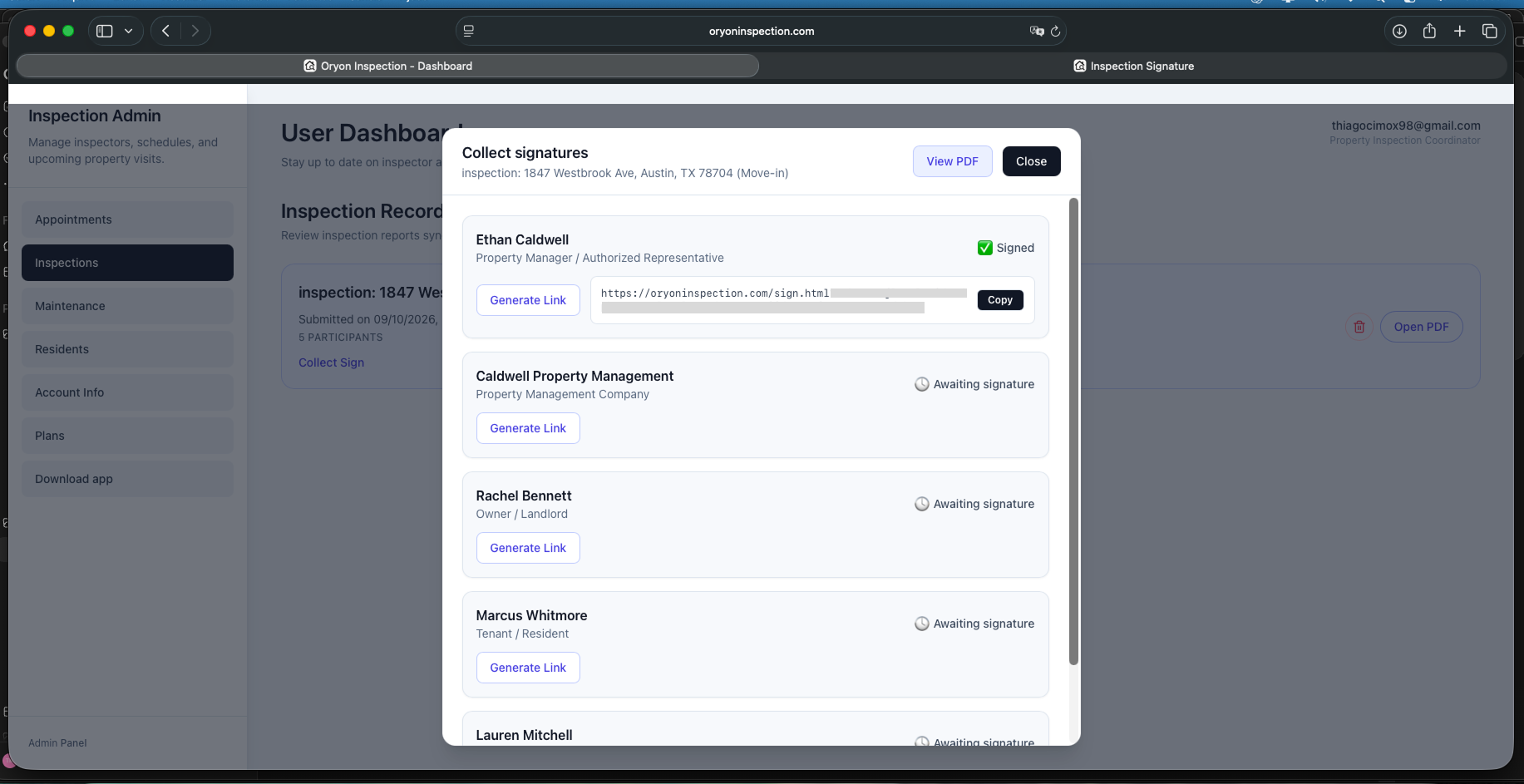
The administrator manages the signature process from the dashboard. Participants receive their individual links to review the report and sign.
Generate each participant's link
After the inspector uploads the inspection, open Collect signatures. Generate links and follow the Signed and Awaiting signature states.
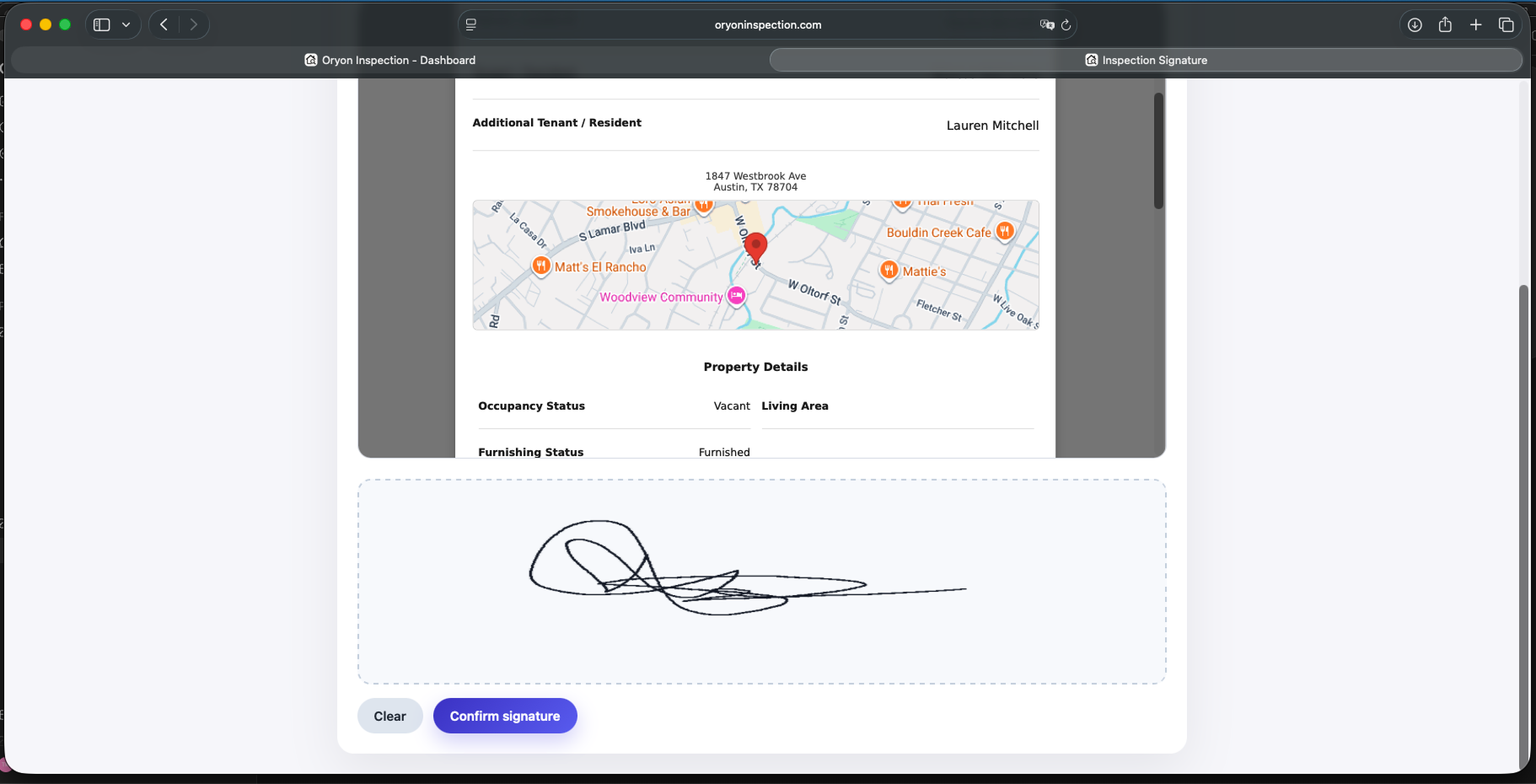
Review the report and sign
The participant opens their link, reviews the document, and uses Confirm signature to submit the signature.
Generate the signed PDF
The report is available for review before everyone signs. Once all participants have signed, the administrator can generate the signed PDF.
When the record needs a follow-up
Add the next observation.
Use Create Dispute Addendum on the selected inspection's Registration screen to create a dispute inspection. Record a correction or a subsequent update, such as work reported on an item that needed attention.
Follow the addendum tutorialAn original finding.
A later update.
See the cooking-range report excerpts and the in-app action used to create the addendum.
A separate example with step-by-step instructions.
Before you start
A few practical answers.
Explore the plans and included features to choose the setup that fits your work.
What does AI do in Oryon Inspection?
Format text with AI corrects the writing in an existing observation. The photo-analysis tool uses 2–6 selected images to populate item details and can add observations when it identifies possible visible defects. Review the generated information before completing the record.
Does Oryon support both move-in and move-out inspections?
Yes. Use Oryon to document the starting condition at move-in and the final condition at move-out. The screenshots on this page show a move-in example; the app supports both inspection types, as well as periodic inspections.
What can I record for an inspection item?
You can record photos, videos, observations, condition, and item details. In the example above, the Cooking Range entry includes photos, a repair flag, and characteristics such as fuel type and finish. The Photos and Details screens belong to the same item.
How do inspection signatures work?
After the inspection is uploaded to the dashboard, the administrator can generate links for the participants and track who has signed. Each participant can review the report and submit a signature through their link. Once all participants have signed, the administrator can generate the signed PDF.
Can I view the report before everyone signs?
Yes. The report is available for review before all signatures are collected. The signed PDF is generated after the signature process is complete.
What does the inspection activity panel show?
It records inspection completions reported by inspectors, including the inspector, property, inspection type, and completion time. This helps the administrator follow deliveries; it is not a record of every edit made during an inspection.
Can I add information after an inspection?
Yes. Create Dispute Addendum, on the selected inspection’s Registration screen, creates a dispute inspection for additional observations. You can document a correction or a subsequent update to an item.
Where do I inspect and where do I manage the work?
Use the Oryon Inspection mobile app on iOS or Android for field documentation. Use the web dashboard for scheduling, tracking reported completions, reviewing uploaded inspections, and managing the signature process.
A clearer process, supported by software
Put the app to work
with a good inspection plan.
A property inspection app organizes the condition record. Your walkthrough supplies the observations. Use these guides to decide what to inspect and how to document it.
Still evaluating your options? Read the property inspection app comparison →
Your next move-in. Your next move-out.
Make every observation
easier to follow.
Bring item photos, details, reports, and signatures into your rental inspection workflow with Oryon Inspection.