Start with the inspection you want to update
In Oryon Inspection, Create Dispute Addendum creates a dispute inspection from the selected inspection's registration screen. Use the additional record to explain a correction, add an observation, or document a change to an item after the original inspection.
This walkthrough follows a cooking range recorded during a move-in inspection. The original note says its hose is damaged and needs repair. The later Dispute entry reports that the hose was replaced and includes a new photo.
Choose the right kind of update. If the original description is wrong, explain the correction. If the original finding was accurate and the item was repaired later, describe the repair. In the cooking-range example, the second observation updates the item's history; it does not make the first observation incorrect.
Before creating the addendum, have these details ready:
- The completed inspection and its original report, so you can confirm the property and finding.
- The room and item to update. Here, they are Kitchen and 2.16. Cooking Range.
- A factual description of what needs correcting or what has changed.
- A relevant photo and the observation or work date, if known.
1. Open Registration and select Create Dispute Addendum
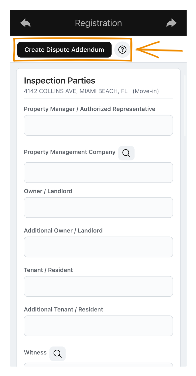
Open the existing inspection you want to supplement and go to its Registration screen. This is the selected inspection's registration, where the inspection parties are listed.
Near the top, above Inspection Parties, select Create Dispute Addendum. The orange arrow in the screenshot points to this action. Selecting it creates a dispute inspection for the selected inspection.
Confirm you are working from the intended property and inspection before continuing. A clear update attached to the wrong inspection will not explain the history of the item you meant to document.
2. Identify the room, item, and original observation
Use the original report to identify the finding that the dispute inspection will address. Keep the room and item reference consistent so someone reading both records can follow the same issue.
In this example, the original report identifies 2.16. Cooking Range and states: “The hose is damaged and needs repair.” The photographs show the cooking range and the hose connection.
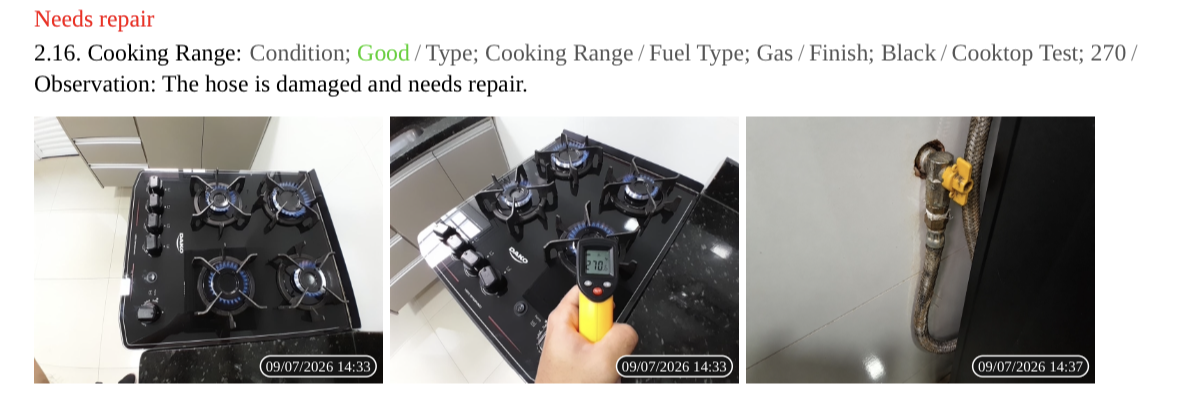
The general condition field reads “Good,” while the specific observation identifies a repair need. Read both. If an overall rating needs correction, explain that separately from an update about work performed.
3. Record what changed in the dispute inspection
In the dispute inspection, record the additional observation for the relevant room and item. Make the note understandable alongside the original finding: name what changed and avoid replacing a specific explanation with “done” or “resolved.”
Observation shown in the example
“The hose was replaced with a new one.”
This describes the action reported for the cooking-range hose. It addresses the original repair need directly.
When you have more information, add useful context to the observation. The following is suggested wording, not additional information shown in the screenshot:
Kitchen — Cooking Range: The hose identified as damaged in the original inspection was replaced with a new one on [actual completion date]. The attached photo shows the replacement hose. [Add the service record reference or verification result, if available.]
Replace the brackets with known facts or leave those details out. Keep the date of the work separate from the date you enter the note. If you are recording someone else's report of a repair, identify that source rather than implying you personally checked the work.
If you are correcting a description instead
Use the same entry point, but write what the original report says and what should be corrected. For example: “Kitchen — Cooking Range: the general condition is listed as Good, but the original observation identifies a damaged hose requiring repair. Please review the overall condition rating against that finding.” This is a suggested correction request, separate from the replacement note in the screenshots.
4. Add a photo that supports the update
Include a relevant photo with the item in the dispute inspection. For this example, the later report includes a closer view of the replacement hose. The image should help the reader connect the new observation to the component shown in the original record.
- Show the right item: retain enough context to identify the component, rather than an unrelated overview of the room.
- Use the appropriate image: a repair update needs evidence of the later condition. Do not reuse the original photo as if it shows completed work.
- Describe what the evidence supports: a photo can show the visible condition; it does not by itself document a safety test or a technician's sign-off.
For help choosing clear views and writing objective notes, see how to document rental property damage.
5. Review the resulting Dispute report
After completing the additional record, review its report before sharing it. In the example below, the report has a Dispute heading, a response-generation date, a Kitchen (Dispute) section, and the observation for 2.16. Cooking Range.
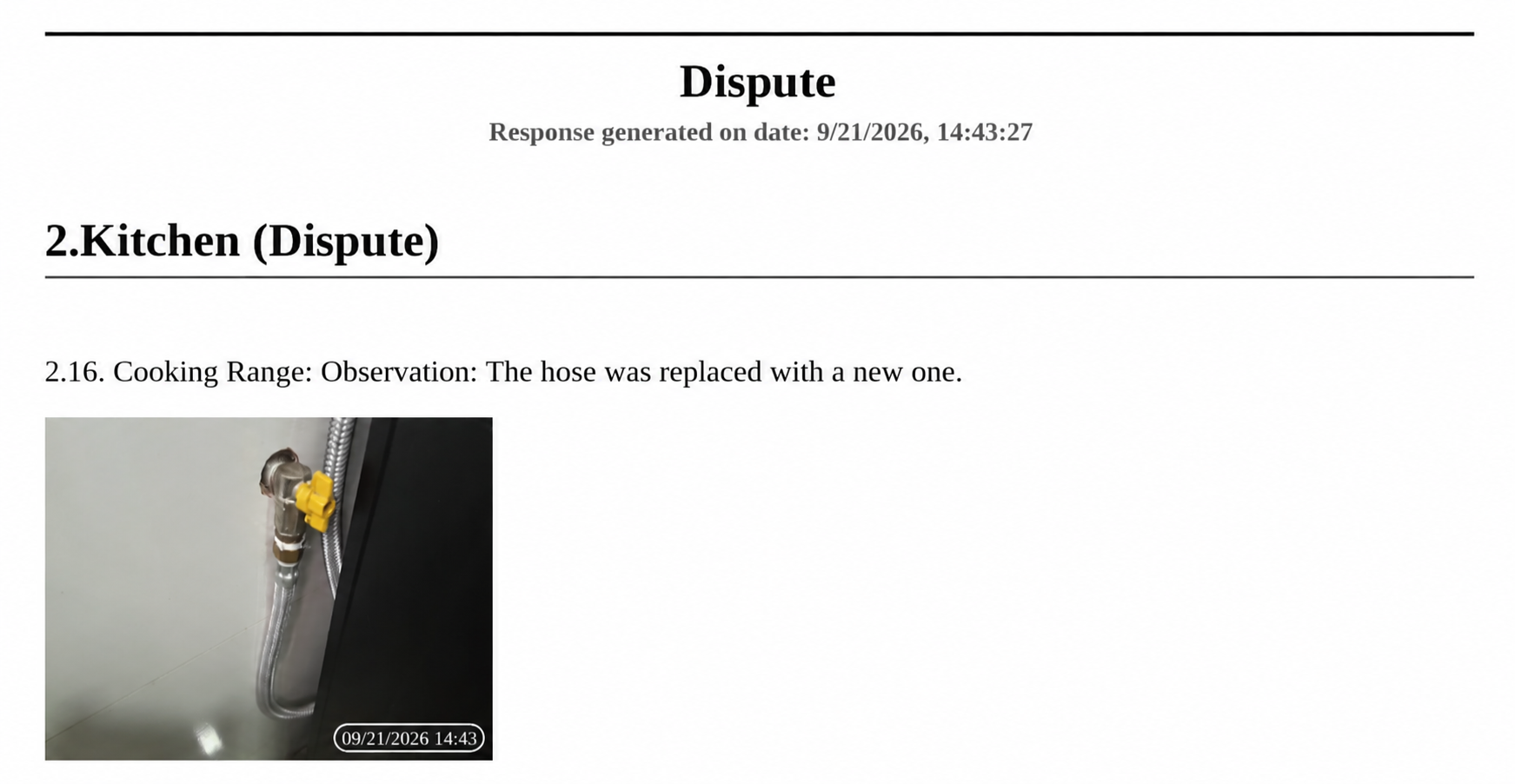
Select a report screenshot to open the full-size image in a new tab.
The hose is recorded as damaged and needing repair.
The later observation reports a replacement and includes a new photo.
Keep both records available. Together, they explain why attention was needed and what was subsequently reported. The response-generation date identifies when the response was generated; use a separate note for the actual repair date if it is known.
6. Check the addendum before sharing it
- Correct inspection: the addendum relates to the intended property and original inspection.
- Matching item: the room and item make the connection to the original finding clear.
- Specific observation: the note explains the correction or change without unsupported assumptions.
- Relevant evidence: the photo belongs to this item and shows the condition described in the new note.
- Clear timing: observation, work, and response-generation dates are not treated as interchangeable.
- Remaining action: any inspection, repair, or verification still needed is identified.
Provide the completed record to the appropriate inspection parties through your agreed reporting process. Keep the original report and the addendum together for later reference. If a correction requires a separate notice or response under the property's applicable rules, handle that alongside the app record.
Questions about this workflow
Where is Create Dispute Addendum?
It is near the top of the selected inspection's Registration screen, above Inspection Parties, as shown in the first screenshot.
Can the update describe a completed repair?
Yes. The cooking-range example shows a Dispute observation reporting that the hose was replaced. Write it as a later update to the item, preserving the distinction between the original condition and the subsequent work.
Does the Dispute entry mean everyone agreed with it?
The screenshots show an additional observation and a photo. They do not show agreement or signatures from all parties. Keep any required response or acknowledgment with the inspection records.
What if the issue is still unresolved?
Describe what remains unresolved instead of saying the item is fixed. Record the available evidence and the next action. A newly generated response does not mean a repair or its verification has been completed.
Give the next observation a clear place in the record.
Start from the selected inspection's Registration screen, create the dispute addendum, and document the relevant item with a factual observation and supporting photo. Use the original report and the additional record together when reviewing what changed.
Explore Oryon Inspection